Symbol workspace
The symbol workspace is the deepest screen: one symbol inside one profile. Open it by tapping a symbol on the profile dashboard.
A header sits above four tabs and stays visible as you switch between them:
- Symbol switcher and shortcuts to Config and Backtest.
- Stats strip — last price, 24-hour change, high, low, and volume.
- Position strip — your current position, open orders, and unrealised P/L.
- Tick chips — how long ago the last strategy tick ran, and its latency.
Trade
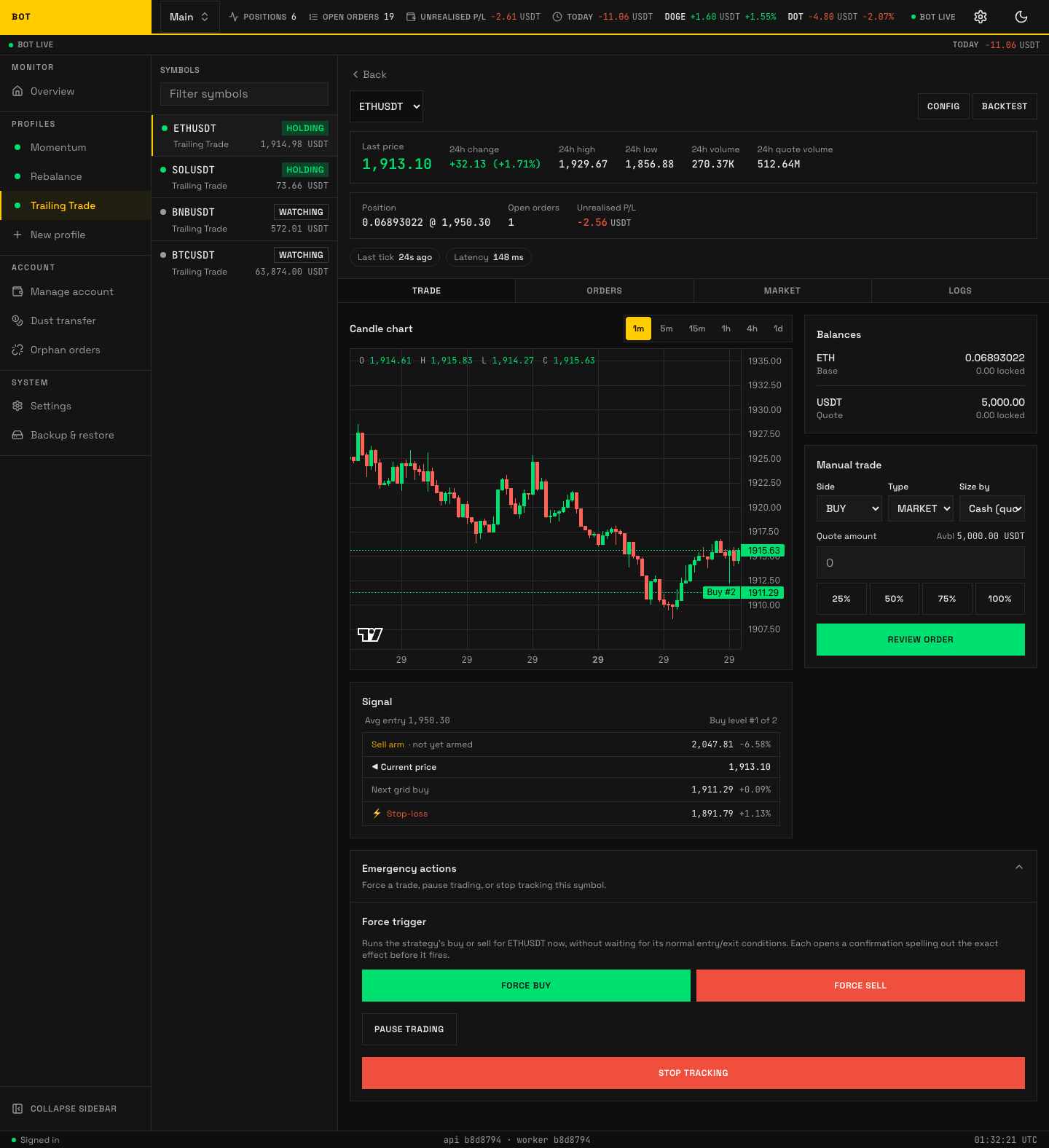
The Trade tab: price chart, balances, manual trade, and emergency actions. Seeded demo data, not a real account.
The Trade tab shows the price chart, the balances the profile can spend on this symbol, a manual buy/sell panel, and an Emergency actions panel (force a trigger, cancel a queued one, pause the symbol, or stop tracking it). The Signal panel below the chart is the strategy's own read of the symbol right now; each strategy supplies its own, so what it says depends on which one the profile runs. A strategy without its own panel (momentum, for one) says it in sentences built from the same levels the chart draws: while flat, the next buy level and how far it is from the current price, and where a stop would start if it bought; while holding, the entry price and the price each stop sells at, the one that fires first listed first. While flat the chart draws only the buy level, because no stop rests on a position that does not exist yet. The chart opens on the candle interval the strategy decides on (an hourly strategy opens on 1h) until you pick another.
Cancel queued override revokes a manual action you already asked for on this symbol — a forced buy or sell, or a manual order — before the bot's next check picks it up. It never touches your balance or any order already on Binance. Confirming gives you one of three answers:
- Cancelled. The request went through. It is not a promise that the queue is now empty: it is also the answer when there was nothing waiting at all, and when a newer action arrived while this one was being removed. Check the panel again if you need to be sure nothing is pending.
- Too late — the bot is already acting on it. A check has claimed the action, so the cancel lost the race. Read the message: sometimes a queued action was removed and an earlier claimed one survived, so the cancel partly succeeded. Watch for a follow-up notice telling you how the claimed action ended, and if none arrives within about five minutes, check the order on Binance before asking for anything else. This stays the answer until the bot finishes with the action, which can be up to ten minutes if the check that claimed it stalled.
- An error. Nothing was cancelled; the message names what failed.
Orders
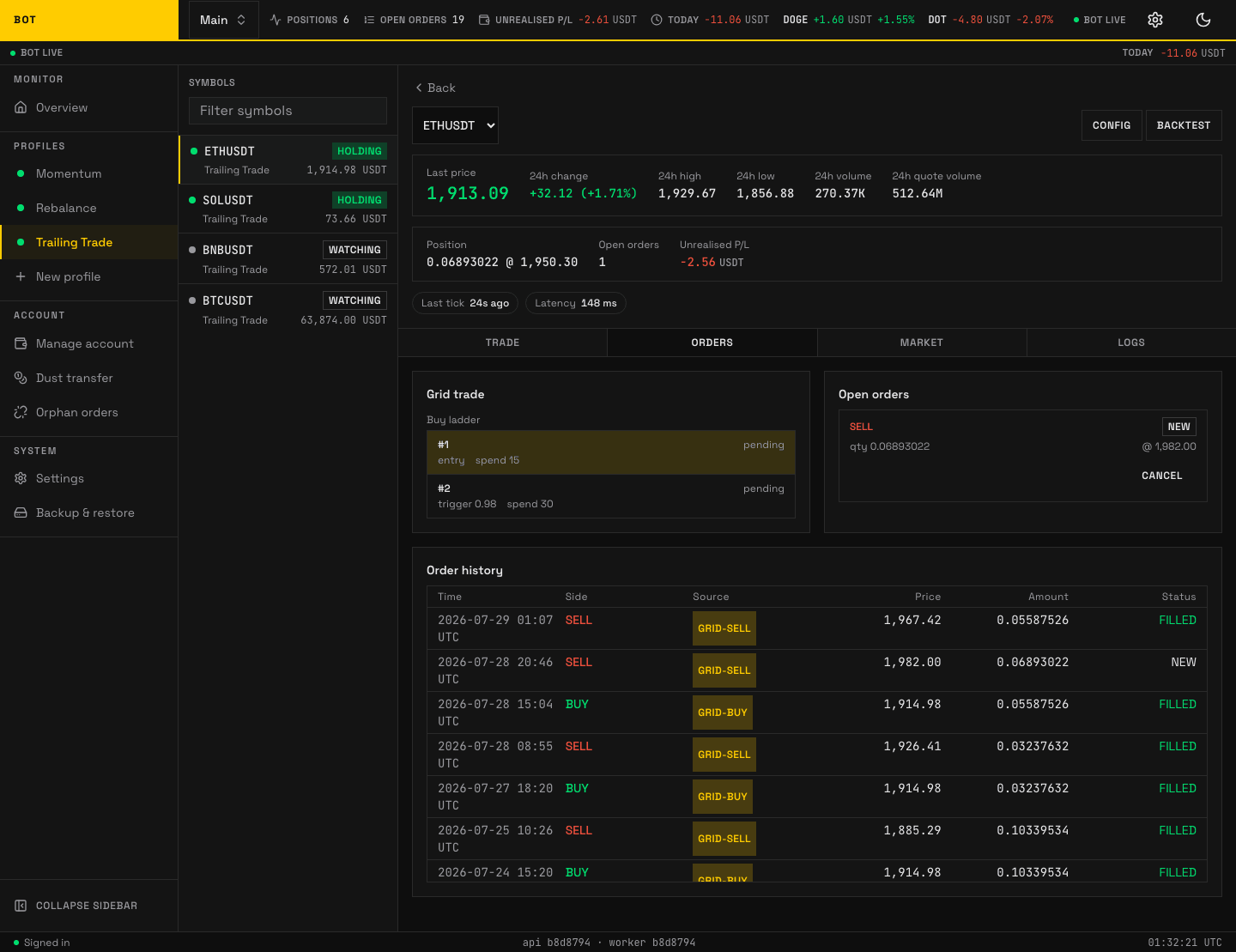
The Orders tab: the grid ladder, resting open orders, and the recent order history. Seeded demo data, not a real account.
Open orders currently resting on Binance, and the order history for this symbol. A Trailing Trade profile also shows its grid ladder here — each rung, its trigger, its budget, and which ones have been taken.
Market
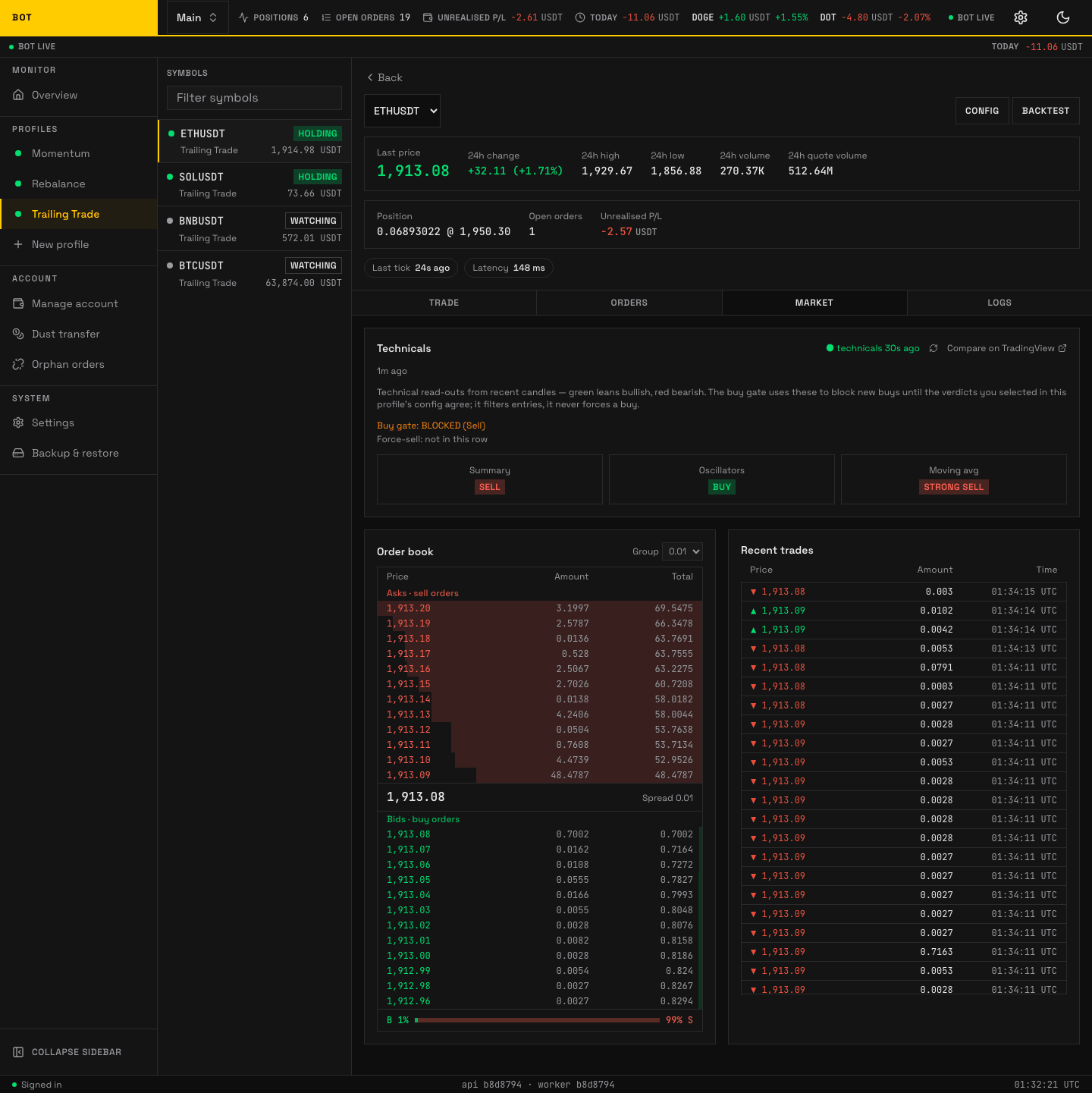
The Market tab: technicals, discovery status, order book, and recent trades. Seeded demo data, not a real account.
The technical-analysis reading, the symbol's discovery status, the live order book, and recent market trades. See Technicals.
Logs
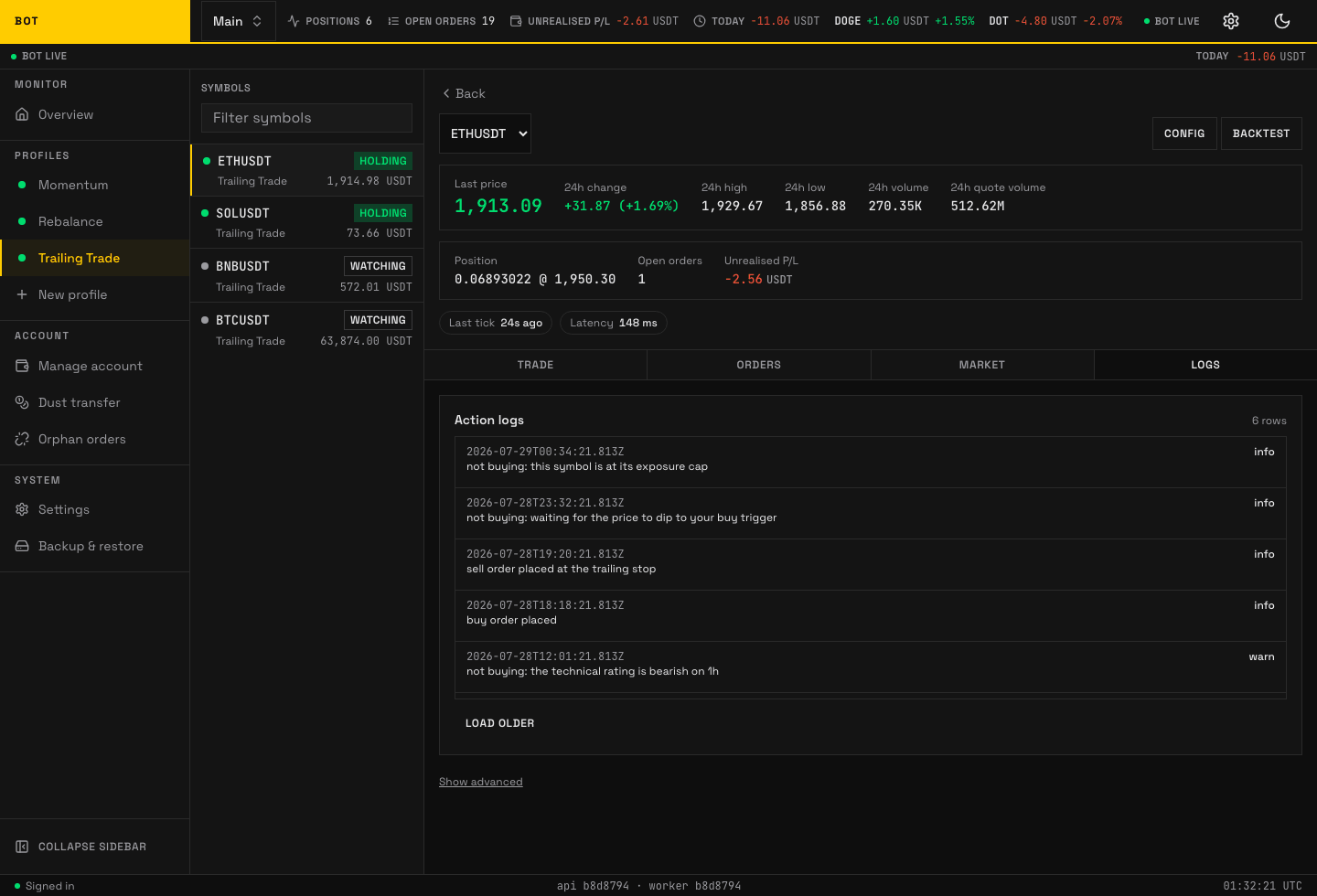
The Logs tab: the strategy's own record of why it acted. Seeded demo data, not a real account.
Every decision the strategy logged for this symbol, plus an advanced drawer with the raw tick detail. This is where "why did it buy?" is answered.
Symbol config

The Symbol config page: per-symbol overrides on top of the profile strategy. Seeded demo data, not a real account.
Reached from the header Config button. Overrides here apply to this one symbol only; everything left unset inherits the profile's Strategy config.
Adding a coin checks the profile's settings against Binance's order rules for that pair. A warning on an otherwise successful add is explained in Troubleshooting.