Connect Slack
Slack is the platform's inbound surface: alerts and human @-mentions arrive as Slack events, and
the triage engine posts its investigation back into the thread. Connecting Slack is a one-time setup
that pairs a Slack app with the platform's Connections page. Reuse an existing App dedicated
to this connection, or create one if needed. Do not share it with another active Socket Mode consumer.
Two sets of rights are needed, in two different places. In Slack, you need workspace admin (or app-management) rights to create and install the app. In this platform, you need the owner or admin role in the workspace you are connecting Slack to: a member can complete every Slack-side step and paste both tokens, but the save in step 4 is refused.
This page is the procedure. What each control on the dashboard means once Slack is connected is in Inbound; what to expect from the platform in Slack day to day is in Slack.
1. Create the Slack app
If you already have the App, open it and check the scopes and Socket Mode settings below instead.
- Go to https://api.slack.com/apps → Create New App → From scratch.
- Name it (for example
SRE Triage) and pick the target workspace.
2. Add bot scopes
Under OAuth & Permissions → Scopes → Bot Token Scopes, add:
| Scope | Why |
|---|---|
app_mentions:read |
Receive @-mentions that create or resume an incident thread. |
channels:history |
Read channel/thread messages the engine correlates and replies to. |
channels:read |
List the channels the bot can see, so you can PICK the ones to listen to (add groups:read for private channels). |
groups:history |
Receive and read messages in private channels. Required with message.groups. |
chat:write |
Post triage updates back into the channel/thread. |
files:read |
Fetch url_private attachments (screenshots, logs) for vision analysis. |
users:read |
Required at connection validation for bots.info, and used by users.info for attribution. |
users:read.email |
Optional. Include the author's email in users.info so it can be matched to a platform user. Must be granted with users:read; on its own it does nothing. |
Why each scope is needed, and why attribution can fail silently, is at the end of this page.
3. Enable Socket Mode and collect the credentials
- OAuth & Permissions → Install to Workspace → authorize.
- Copy the Bot User OAuth Token (starts with
xoxb-). - Socket Mode → Enable Socket Mode.
- Basic Information → App-Level Tokens → Generate Token and Scopes. Name the token and add the
connections:writescope, then generate and copy the token (starts withxapp-).
Keep both tokens handy for the next step. The platform stores them AES-256-GCM encrypted; they are never shown again after you save.
4. Connect Slack in the dashboard
In the dashboard, open Connections, choose Add connection, select Slack, and press Connect Slack. The wizard has three steps: Credentials, Review, Verify.
Credentials
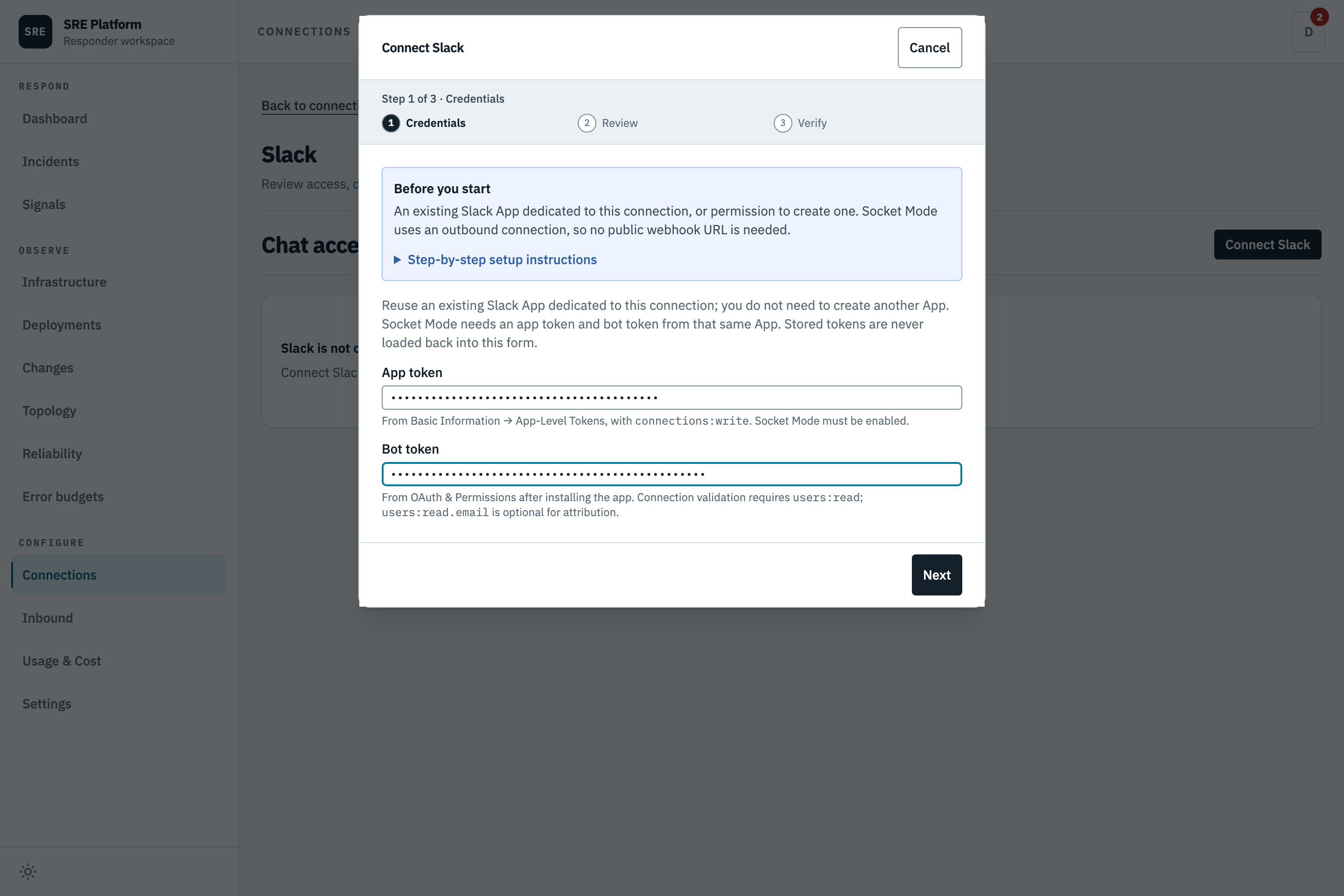
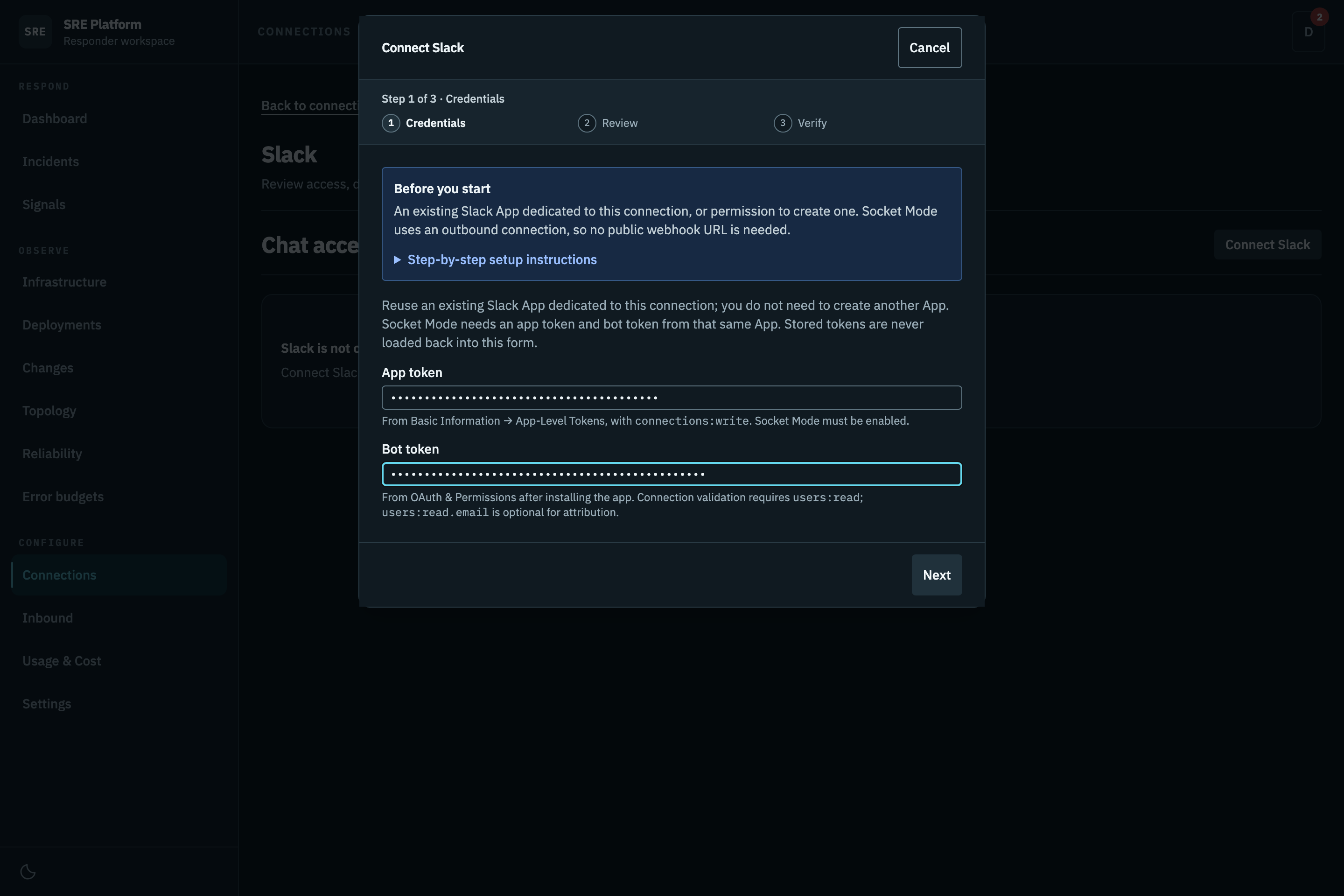
Paste the App token (xapp-) and Bot token (xoxb-). Both are write-only, and an existing
token is never loaded back into the form: on a later edit, a blank field leaves the stored value
untouched. You can therefore replace one token without re-entering the other.
Review
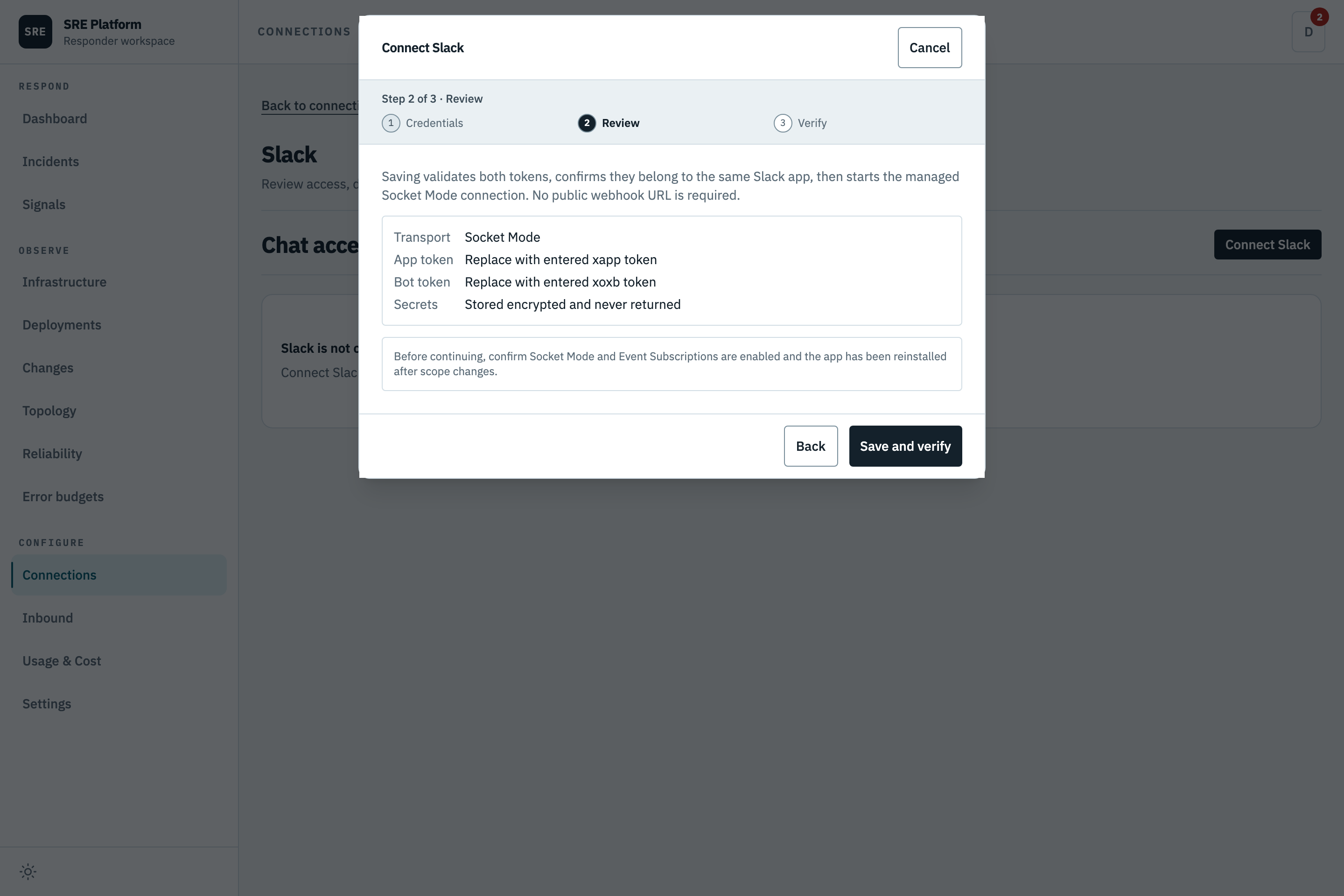
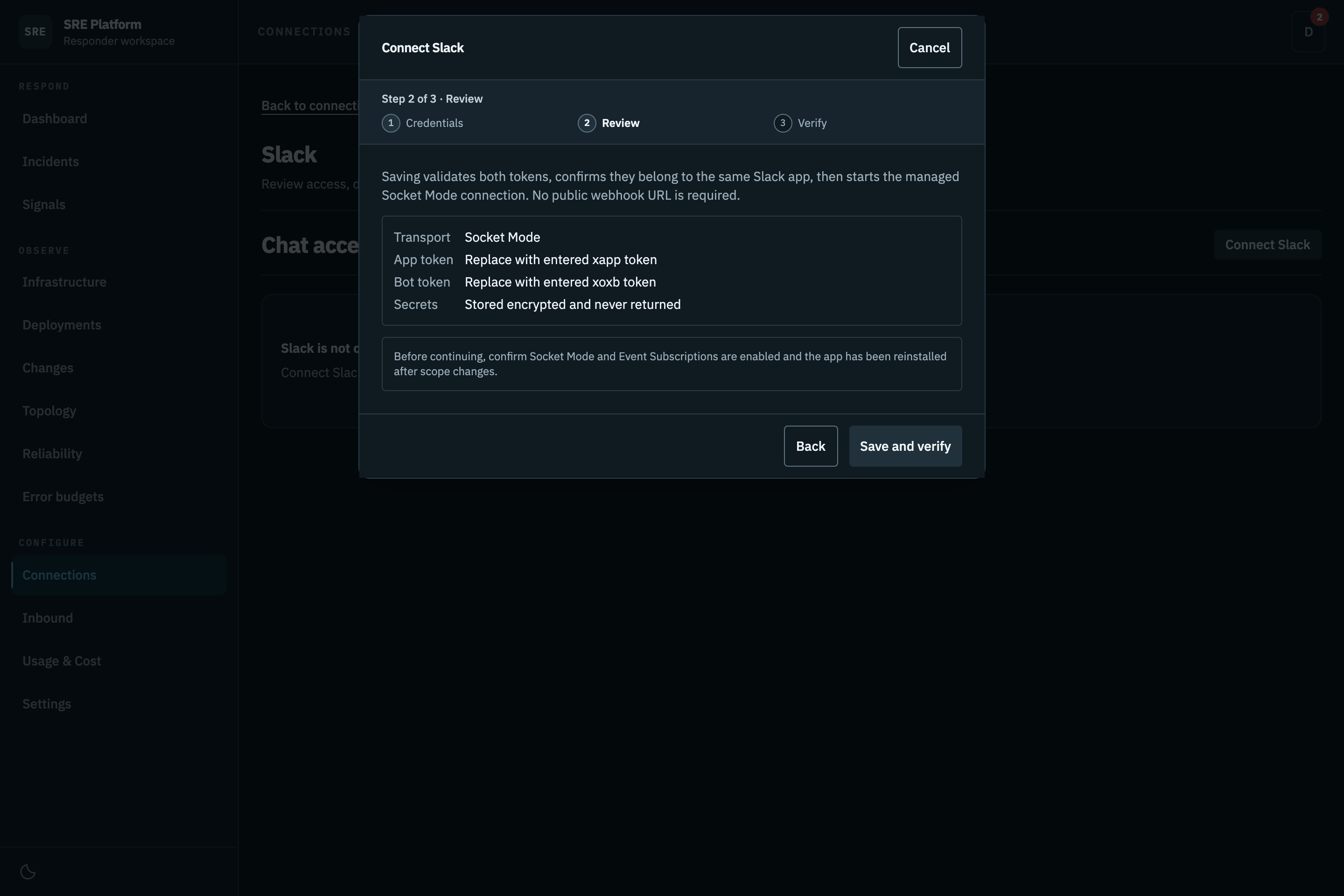
The transport, what will happen to each token, and where they will be stored. Click Save and verify.
Verify
Before it changes the stored connection, the platform validates auth.test, bots.info, and
apps.connections.open, and checks that both tokens belong to the same Slack app. A mismatched
pair is rejected rather than half-connected, and if the check fails your previous working connection
is left untouched. On success this step shows the resolved bot user and team.
This step runs against your real workspace, so it is not pictured here.
That is the whole connection. There is no "channel to post to": the AI replies in the thread the alert arrived in. There is no inbound toggle either, subscribing a channel (step 6) is the opt-in.
Rechecking the stored tokens later
There is no separate test button for Slack. To revalidate the tokens you already saved, open Connections, select Slack, choose Edit Slack, leave both fields blank, and click Save and verify. Blank fields change nothing; the verify step re-runs the same checks against the stored tokens and refreshes the recorded bot identity. Do this first when Slack starts behaving oddly, before changing anything.
5. Enable Event Subscriptions in Slack
- Event Subscriptions → Enable Events.
- Under Subscribe to bot events, add:
message.channelsapp_mention- For private channels, also add
message.groupsand grant thegroups:historybot scope. - Save Changes, then reinstall the app if Slack prompts for the new event scopes.
- Enable Interactivity & Shortcuts → Interactivity if you use approval buttons.
Socket Mode carries event and interactive payloads over the authenticated WebSocket opened with the
xapp- token. Do not configure a public Request URL.
An incoming webhook created under this same Slack app is supported as an alert source. Its unowned root messages still enter ordinary alert classification. Native Alertmanager delivery also posts a platform-owned root: its Slack echo is suppressed only when the routed bot identity and durable intake ownership match. The marker alone is not authority. Human replies and ordinary provider messages remain eligible for their normal paths.
Choose one incident-ingestion owner per provider route. Do not send both direct provider Slack copies and native webhook copies into subscribed incident channels. Native delivery still needs a connected bot and an enabled destination subscription so responders can use the conversation. Before changing owners, drain active episodes through recorded provider clears or explicitly reconcile a verified mapping; native activation does not migrate existing Slack incidents. Follow the cutover, canary and rollback procedure before changing a route. Native notification visibility depends on the platform and Slack post succeeding; an uncertain post is not automatically repaired.
6. Choose the channels to listen to
On the Inbound page, choose Add channel, search the Slack channel list, select a channel, and click Add. A channel appears as Listening only after the save succeeds. Clear its Listen checkbox to pause new intake without disconnecting Slack. Search subscriptions and filter by Listening or Paused to manage a larger list.
The list comes from Slack's own conversations.list, so you can only choose channels the bot can
actually see. Two things follow from that:
- A private channel appears only after the bot is invited to it.
- A newly invited channel can take up to five minutes to appear. The channel list is cached for five minutes to stay within Slack's rate limits. Reopen Add channel after that.
The platform stores the channel ID (C07…), because that is what Slack events carry; a
hand-typed #name never matches one.
If the list is empty or errors, the message names the missing OAuth scope (channels:read, plus
groups:read for private channels). Add it in Slack, reinstall the app, and reload. If the list is
marked truncated, the bot can see more channels than the platform pages through: invite the bot to
the specific channel you need rather than hunting for it. What the rest of the subscription list
shows is in Inbound.
7. Verify
Post a root message, send an alert through the app's incoming webhook, or @-mention the bot in a
subscribed channel. A message classified as an incident should appear on the dashboard with the exact
accepted root as the first transcript line, and the engine should reply in that Slack thread. A Slack
thread reply should appear in the dashboard transcript without being echoed back to Slack; a dashboard
reply should appear once in Slack.
What counts as a provider alert
A bot-authored top-level message is recognised as a firing provider alert when it matches one of these shapes. A recognised firing alert is never dismissed as unworthy of investigation: even when the classifier votes against it, the platform opens or joins an investigation, unless the same message also announces a recovery.
| Recognised shape | Example of what matches |
|---|---|
| Alertmanager-style Slack template | [FIRING] or [FIRING:2] in the text, or a line starting *Alert:* |
| Alertmanager prose | Alertmanager: … firing, or a line starting firing alert |
| Structured attachment fields | An attachment with a Severity field and a Source field naming alertmanager, datadog, monitoring, opsgenie, pagerduty, prometheus, or statuscake |
| StatusCake uptime | Website \| … went down [HTTP 503] (any three-digit status) |
| Certificate monitors | SSL monitoring, expiration reminder … certificate, or certificate valid until |
The set is fixed, not open-ended: a provider whose message matches none of these rows is not recognised, so its alerts are judged by the classifier like any other message.
A Slack message never clears an alert that a connector or a provider's native webhook established,
and never resolves an incident on its own. Any message, from a bot or a person, that reads as a recovery
notice (for example a line starting [RESOLVED] or Resolved:) is recorded as a log entry and shows
as Resolution not matched. So does an edit of a message the platform already tracks, and a
classifier suggestion that a message resolves an open alert. None of these change any signal or
incident. The exception is a bot's recovery notice for an open incident from the same bot and
channel: it shows as Recovery reported and is noted in that incident's conversation. When
several open incidents track the alert's monitor, the notice goes to the incident with the most
recently seen alert. Once
reports cover every active alert on the incident, and every one of those alerts was itself raised
from Slack, the platform marks those alerts recovered and starts recovery verification. The incident
resolves only if verification confirms recovery. An alert established by a connector or a native
webhook is cleared only by recovery evidence that a connector verifies or that the provider delivers
through its native webhook: see
Alert lifecycle and existing incidents
and Alertmanager delivery.
Everything else, including every human-authored message and any bot chatter that matches no row
above (deploy notices, build results, status pings), goes to the classifier, which decides whether it
opens an incident, joins one, or is recorded without an investigation. Two housekeeping shapes are
suppressed before classification and show as Control notification suppressed, both only when
every severity in the message is none: an Alertmanager InfoInhibitor group, and an alert whose
routing declares a null receiver.
The Inbound page shows a message as pending until the platform has finished deciding what to do with it, and records the outcome only once the resulting change has actually been made. The outcome wording is listed in Inbound.
If nothing happens, check that the channel is subscribed and enabled on the Inbound page and that
the app token still has connections:write. The log lines to grep are at the
end of this page.
Why those scopes
These are the exact scopes the backend uses: the poster calls chat.postMessage/update/delete
(chat:write), the channel picker calls conversations.list (channels:read / groups:read), the
reader calls conversations.replies (channels:history), inbound handles
app_mention events (app_mentions:read), attachment ingestion downloads url_private
(files:read), and author attribution calls
users.info for the author's email.
Connection validation requires users:read because the API verifies that the bot and app tokens belong
to the same Slack app with bots.info. Author attribution additionally uses the optional
users:read.email scope:
users.infois ausers:readmethod, so withoutusers:readthe call itself fails withmissing_scope.users:read.emailonly adds the email field to that call's result, and Slack states: "This scope must be requested at the same time asusers:read." Granting it alone attributes nothing.
Attribution is optional, and its failure is always silent by design: if users:read.email is missing, or
users.info errors, or the email matches no member (or matches two), the human reply is still
ingested and the approval decision is still recorded, just with no author link. Nothing is dropped
and no one is guessed at, so a partial grant looks exactly like a working setup that never names
anyone. Grant both scopes to enable attribution.
Log lines for troubleshooting
The API and worker both log a secret-free trail; none of these lines carry message text or tokens.
The API's Slack Socket Mode delivery logs show
receive, route, drop, and terminal outcome stages. The triage worker logs Slack inbound
classification outcome with the message identity, author, attempt, and decision, but never message text
or tokens. Startup configuration failures are logged as Slack Socket Mode startup skipped with a safe
stage and config id.
Next
- What to expect from the platform in Slack day to day: Slack.
- Give the engine something to investigate with: Connectors.